ProtoPie AI Best Practices: 3 Frameworks for Better Results
Master ProtoPie AI with proven best practices for faster, high-fidelity prototypes. Frameworks and examples included.


Getting started with AI prototyping? As AI-powered design tools reshape UX design and interactive design workflows, understanding ProtoPie AI best practices can mean the difference between frustration and flow.
This guide covers canvas preparation, prompt writing, the hybrid workflow approach, and how ProtoPie AI compares to other AI prototyping tools. Whether you're new to ProtoPie or exploring AI features, these frameworks will help you create high-fidelity prototypes faster.
What you'll learn:
- How ProtoPie AI Works: The Hybrid Approach
- Best Practice #1: Canvas Preparation Protocol
- Best Practice #2: Write Effective Prompts
- Best Practice #3: When to Use AI vs Manual Control
- Common Mistakes and How to Avoid Them
- ProtoPie AI vs Other AI Prototyping Tools
- Advanced ProtoPie AI Tips for Power Users
- Getting Started Guide
How ProtoPie AI Works: Understanding the Hybrid Approach
Most AI design tools force a choice: speed or control.
Code generators like Cursor or v0 move fast but produce black-box code you can't easily modify. Visual builders like Figma offer control but limited interaction depth.
ProtoPie AI eliminates this false choice with a hybrid model: AI generates editable blueprints, not finished products.
- AI handles technical setup - Triggers, responses, formulas, and conditional logic
- You get 80% instantly - Structure configured, connections made
- You refine the last 20% - Visual adjustments, timing, polish
- Everything stays editable - Fewer re-prompting required
The benefits for your team:
- Reduced prompt fatigue: Refine visually instead of describing every detail
- Full control preserved: Every interaction remains inspectable and editable
- High-fidelity output: Ready for user testing and handoff.
For interactive design and user experience prototyping, this balance of speed and control is essential.
How to Use ProtoPie AI for Interaction Design: Video Tutorial
Watch how to build a complete onboarding flow using the hybrid workflow—AI handles complex interactions, you refine for precision.
What you'll see:
- AI-powered setup: Generate loading animations, scene transitions, and conditional navigation with natural language prompts using @mentions
- Manual refinement: Adjust rotation speed, center origin points, and fine-tune button states for pixel-perfect results
- Hybrid workflow in action: AI analyzes your canvas and shows planned interactions before execution, then you refine timing and visual polish
The result: Smart, responsive interfaces built rapidly without sacrificing creative control.
Why These ProtoPie AI Best Practices Matter
For UX design and interaction design teams, following these practices means:
- Faster iteration without quality trade-offs
- Lower barrier to entry - Junior designers producing advanced interaction from day one
- Better user experience outcomes through rapid prototyping and testing
Teams who understand how to collaborate with AI integrate it seamlessly. Teams expecting AI to read their mind struggle. The difference? Setup and strategy.
ProtoPie AI in Your UX Design Workflow
ProtoPie AI integrates into every phase of the user experience design process:
- Early exploration: Quickly test interaction patterns and user flows
- Validation: Create high-fidelity prototypes for user testing
- Handoff: Deliver high-fidelity prototypes to development teams
Whether you’re focusing on interaction design details or broader UX design strategy, AI accelerates the prototyping phase without sacrificing the quality your users deserve.
Best Practice #1: The Canvas Preparation Protocol
Here's the most important insight: ProtoPie AI dives deeper into your layer structure and properties. It understands layer names, hierarchy, and existing content–giving you precision that goes beyond surface-level visual design.
Phase 1: Create Your Structure
Prepare the interactions you need before asking AI to add behavior.
Example: Show/hide menu interaction
- Create menuButton layer
- Create dropdownMenu layer
- Position them on canvas
- Then prompt AI
Why this works: AI excels at connecting existing elements.
Phase 2: Use Descriptive Layer Names
Name layers to pinpoint what you want.

Pro tip: Use camelCase or snake_case consistently. AI handles both well.
Phase 3: Add Starter Content
Include initial content that signals behavior.
- For counters: Set text layer to "0"
- For toggles: Set text to "OFF”
- For inputs: Include placeholder text
This context dramatically improves AI accuracy.
Canvas Preparation Checklist
Before prompting ProtoPie AI:
✓ All necessary layers created
✓ Layers renamed descriptively
✓ Starter content added
✓ Elements positioned correctly
✓ Initial states set (visible/hidden, default values)
Best Practice #2: Write Effective Prompts for ProtoPie AI
Vague requests get vague results. Specific prompts get precision.
The Precision Prompting Formula
Structure: “When [trigger] happens to [layer], make [layer] do [action].”
For multi-scene interactions: "When [trigger] happens to [@layer], make [@layer] do [action] in [@scene]."
Vague: “Make a toggle”
Effective: “When @toggleButton is tapped, change @statusLabel text from OFF to ON.”
With scene reference: "When @loginButton is tapped, show @welcomeMessage in @DashboardScene."
The specific prompt defines:
- Trigger: tap
- Target layer: toggleButton
- Action: change text
- Affected layer: @statusLabel
- Target scene (optional): @SceneName
- Values: OFF → ON
Zero ambiguity means confident execution.
Use @ Mentions for Better Results
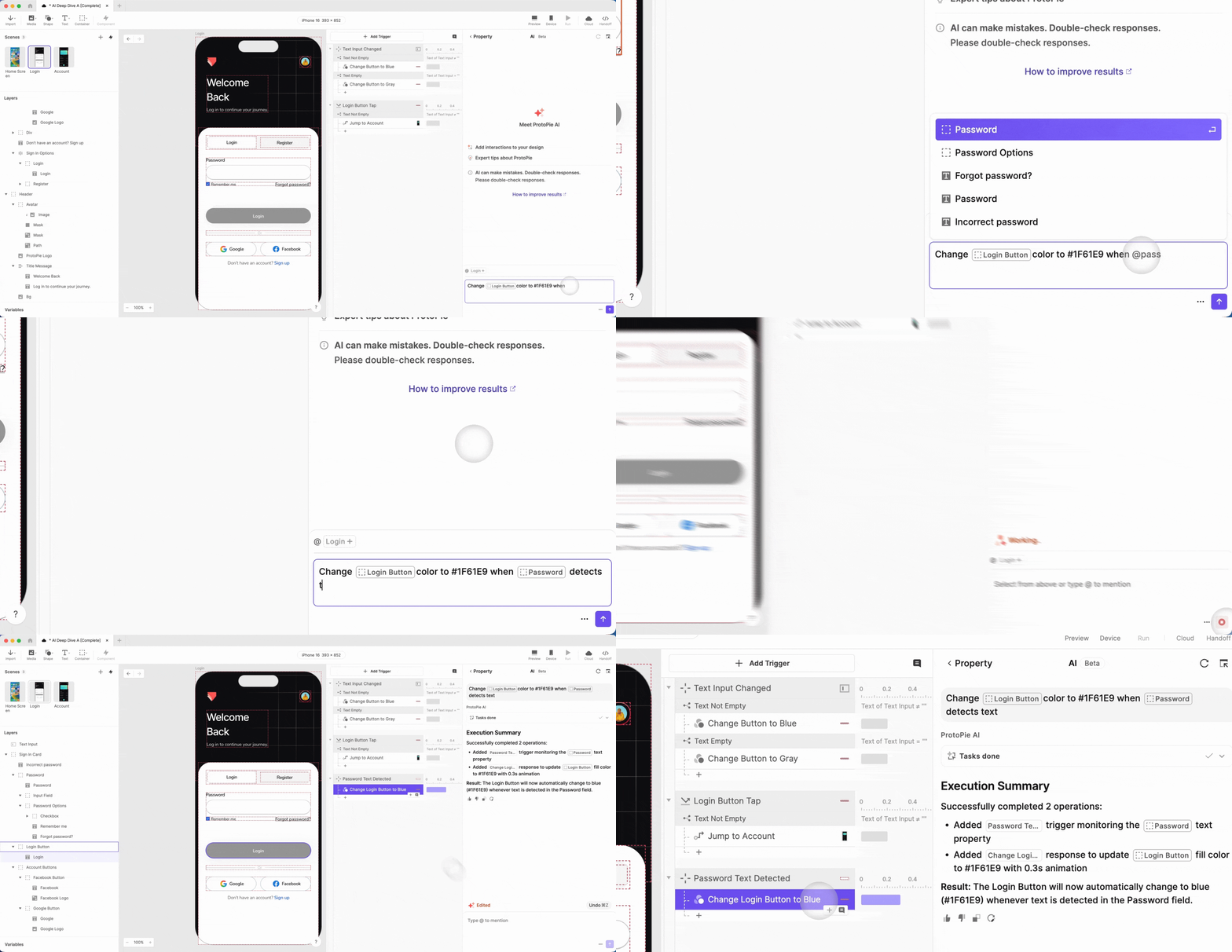
Type @ to reference specific layers in your prompts.
- Without @ mention:“Make the submit button turn blue when there’s text”
- With @ mention: “Change @submitButton color to #1F61E9 when @emailInput detects text"
Pro tip: @ mentions work for both layers and scenes: "When @loginButton is tapped, make @successMessage appear in @AccountScene"
@ mentions eliminate confusion, especially in scenes with similar layer names.
Proven Prompt Templates for ProtoPie AI
Copy these template and adapt layer names:
Show/Hide Interaction:
When @menuButton is tapped, show @dropdownMenu
Toggle State:
When @toggleButton is tapped, change @statusLabel text from OFF to ON
Input Validation:
Change @submitButton color to #1F61E9 when @emailInput detects text
Conditional Navigation:
When @loginButton is tapped, jump to Account scene only if @passwordInput contains text
Counter Animation:
When the scene starts, animate @counterDisplay from 0 to 200 over 3 seconds
Drag Interaction:
Make @Layer draggable horizontally only
These are proven patterns for AI-assisted prototyping.
Best Practice #3: Know When to Use AI vs Manual Control
The most effective ProtoPie AI workflow combines both approaches strategically.
When to Start with AI
Use AI for:
- Repetitive interactions - Multiple buttons with similar behavior
- Pattern replication - Form validation across 20 input fields
- Initial scaffolding - Basic triggers and responses
- Variable connections - Counters, toggles, dynamic text
- Standard interactions - Show/hide, state changes, transitions
Example: Let AI set up validation logic for 10 form fields (2 minutes), then manually adjust error message timing (3 minutes).
When to Go Manual First
Use manual control for:
- Multi-screen architecture - Navigation hierarchy, scene structure
- Pixel-perfect animations - Brand-critical timing and easing
- Complex conditional chains - Nested logic with multiple edge cases
- Component internals - AI doesn't modify components yet
- Fine-tuned interactions - Precise duration, delay, curve adjustments
The Hybrid Decision Matrix

The best AI prototyping workflow isn’t either/or–it’s both/and.
Using Stop and Revert
ProtoPie AI includes safety features:
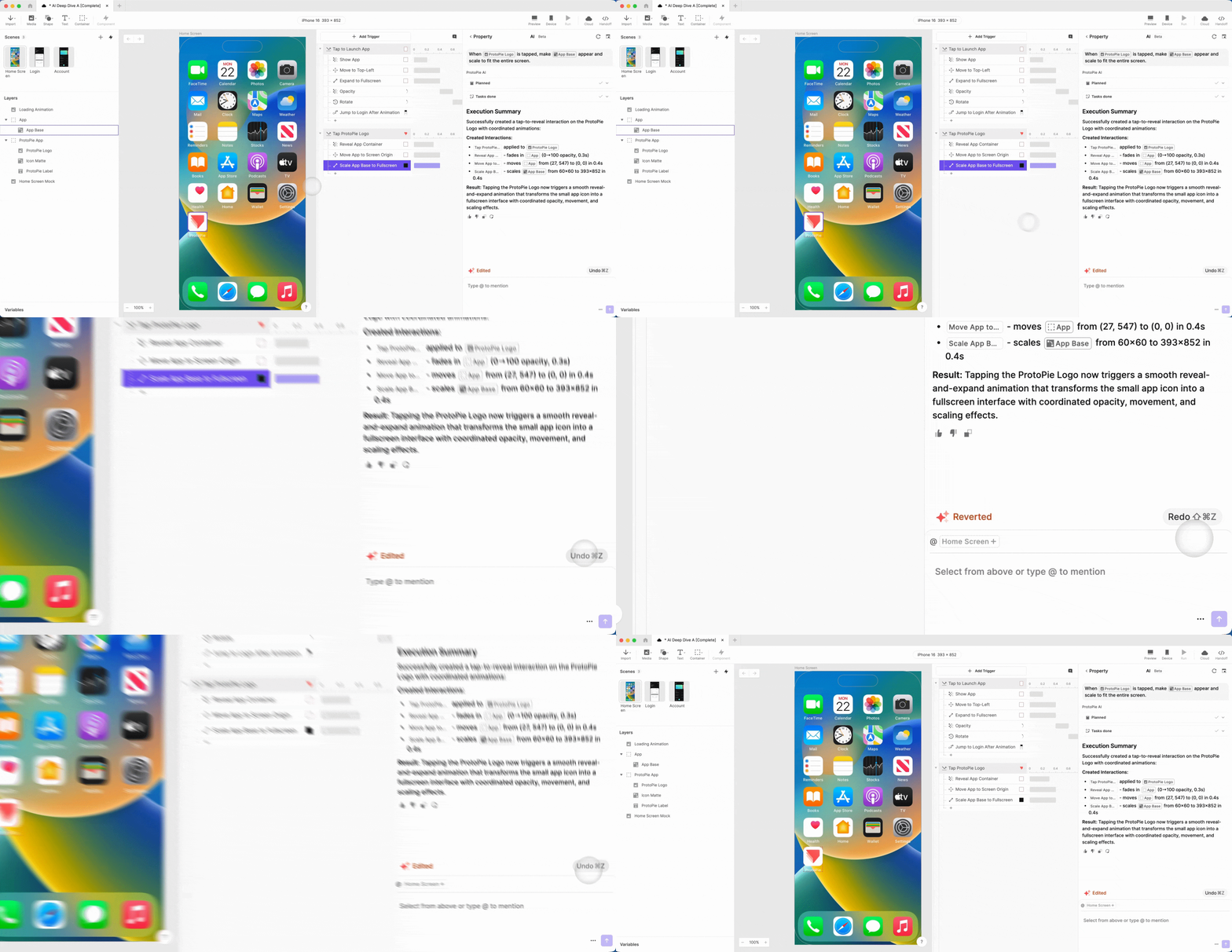
- Stop: Cancel AI execution mid-process (click Stop button)
- Revert: Undo all AI changes from last generation (click Revert)
Try bold prompts. Test complex interactions. If results aren't perfect, revert and refine. You're never locked into AI's decisions.
Common Mistakes When Using ProtoPie AI (And How to Avoid Them)
Mistake #1: Starting with a Blank Canvas
Problem: Prompting AI without prepared elements
Result: Poor quality outputs, frustration
Solution: Follow Canvas Preparation Protocol first
Mistake #2: Vague Prompts
Problem: "Make a counter" or "Add validation"
Result: AI guesses at your intent
Solution: Use the Precision Prompting Formula (what-when-where)
Mistake #3: Expecting AI to Handle Everything
Problem: Trying to build entire multi-screen flows in one prompt
Result: Overwhelming AI, inconsistent results
Solution: Use hybrid approach—AI for structure, manual for architecture
Mistake #4: Not Using @ Mentions
Problem: Describing layers by generic names
Result: AI confusion, wrong targets
Solution: Always use @ mentions to reference specific layers
Mistake #5: Forgetting You Can Edit AI Output
Problem: Re-prompting when result is 90% correct
Result: Wasted time, token inefficiency
Solution: Generate once, refine manually. That's the power of editable blueprints.
ProtoPie AI vs Other AI Prototyping Tools
How does ProtoPie AI compare to other AI-powered design tools?
ProtoPie AI vs Visual Builders (e.g., Figma AI/Framer AI)

Bottom line: Visual builders excel at layout. ProtoPie AI excels at interaction logic.
ProtoPie AI vs Code Generators

Bottom line: Code-gen is fast until you need changes. ProtoPie AI generates once, you refine infinitely.
What Makes ProtoPie AI Unique
The 80/20 rule in action: AI generates 80% of the structure in minutes. You refine the final 20% with complete control. The result? 100% production-ready prototypes.
Unlike other AI tools:
- Not a black box - Every AI-generated interaction is fully editable in ProtoPie's traditional interface
- Not replacing your workflow - Works within ProtoPie, enhancing (not replacing) how you already work
- Not "good enough" quality - AI outputs meet the same fidelity standard as manual prototypes
Advanced ProtoPie AI Tips for Power Users
Ready to go beyond the basics? These power user tips will help you maximize efficiency.
Tip #1: Leverage AI for Pattern Replication
Built a perfect interaction once? Let AI replicate it.
Example: "Apply the same validation logic from @emailInput to @phoneInput and @addressInput"
AI replicates the pattern. You batch-edit for specific differences.
Tip #2: Use AI for Formula Assistance
Stuck on formula syntax? Ask ProtoPie AI Planning & Docs.
Example: "Write a formula that checks if email contains @ symbol"
AI provides the formula with explanation. Copy, paste, adjust variable names.
Tip #3: Combine Multiple Triggers
Example: "When @button is tapped OR when Return key is pressed on @input, jump to next scene"
AI handles OR logic for you.
Tip #4: Request Easing Curves
Example: "Make @panel slide in from right with ease-out curve over 0.3 seconds"
AI applies animation with specified easing.
Tip #5: Ask for Complex Conditional Logic
Example: "If @passwordInput has at least 8 characters AND contains a number, change @submitButton to green. Otherwise keep it gray."
AI builds the conditional structure. You refine threshold values manually.
Get Started with ProtoPie AI Today
Ready to implement these AI prototyping best practices?
Start with ProtoPie AI Planning & Docs before generating interactions. Ask about ProtoPie features, formulas, or best practices—and get helpful responses with code examples.
Day 1: Use AI Planning & Docs exclusively
- "How do I create a scrolling interaction?"
- "Explain the indexOf formula"
- "Show me tutorials about variables"
Day 2: Generate simple interactions
- Show/hide elements
- Toggle states
- Single-layer animations
Day 3: Tackle complex interactions
- Multi-step logic
- Conditional flows
- Scene transitions with Smart Jump
This builds competence and confidence simultaneously.
Note: ProtoPie AI is in open beta and improving based on user feedback. Your thumbs up/down ratings help refine accuracy.
Want personalized guidance?
.png?fm=webp)
.jpg?fm=webp)
.jpg?fm=webp)